Getting a Signed Certificate
To connect securely with the Nopan API, clients must authenticate using a valid X.509 client certificate over mTLS. This certificate must be signed by Nopan's certificate authority (CA).
This guide walks you through:
- Generating a private key
- Creating a certificate signing request (CSR)
- Submitting your CSR to Nopan
- Downloading your signed certificate
Once you have the certificate, you can use it in all authenticated API calls over mTLS.
Installing OpenSSL
openssl version # OpenSSL 3.x
Generating a Private Key
Nopan API supports the following key algorithms:
openssl ecparam -genkey \
 -name secp384r1 \
 -noout \
 -out client-key.pem
Nopan never requests your private key.
Creating a Certificate‑Signing Request (CSR)
There are several ways to create a CSR. While Nopan is not prescribing any particular way, below is an example of how it could be done.
openssl req -new -key client-key.pem -out client.csr \
  -subj "/C=NL/ST=North-Holland/L=Amsterdam/O=Your Company Name/OU=API Client/CN=your-organization-id"
Certificates issued by Nopan are typically valid for 12 months.
Plan for certificate rotation at least 30 days before expiration.
If you don't specify -subj parameter OpenSSL will prompt for each field individually.
Use placeholders only as an example. Substitute your actual organisation details before running the command.
Submitting the CSR to Nopan
Upload client.csr to our portal, for the sandbox
or production environment.
Send only the .csr file.
NEVER send client-key.pem.
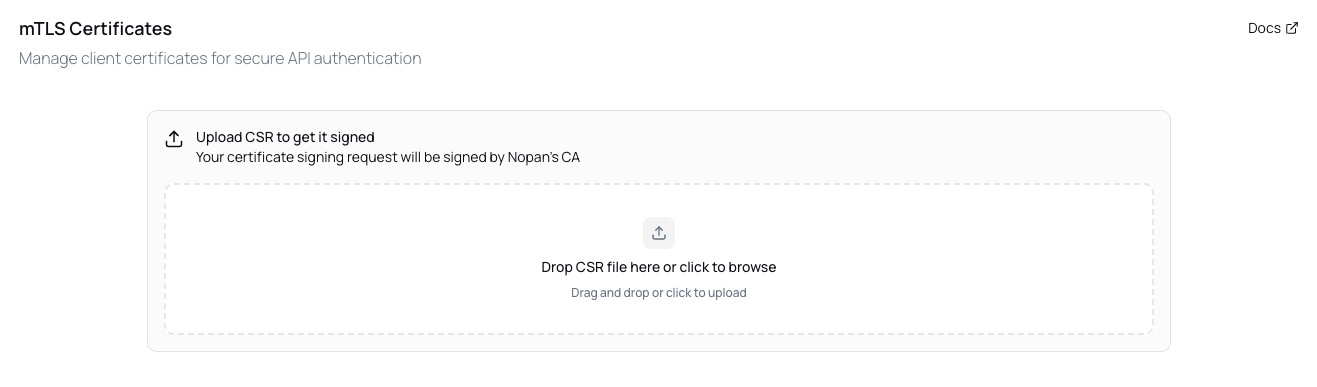
Within the portal, you can access both sandbox and production environments.
Receiving Your Certificate
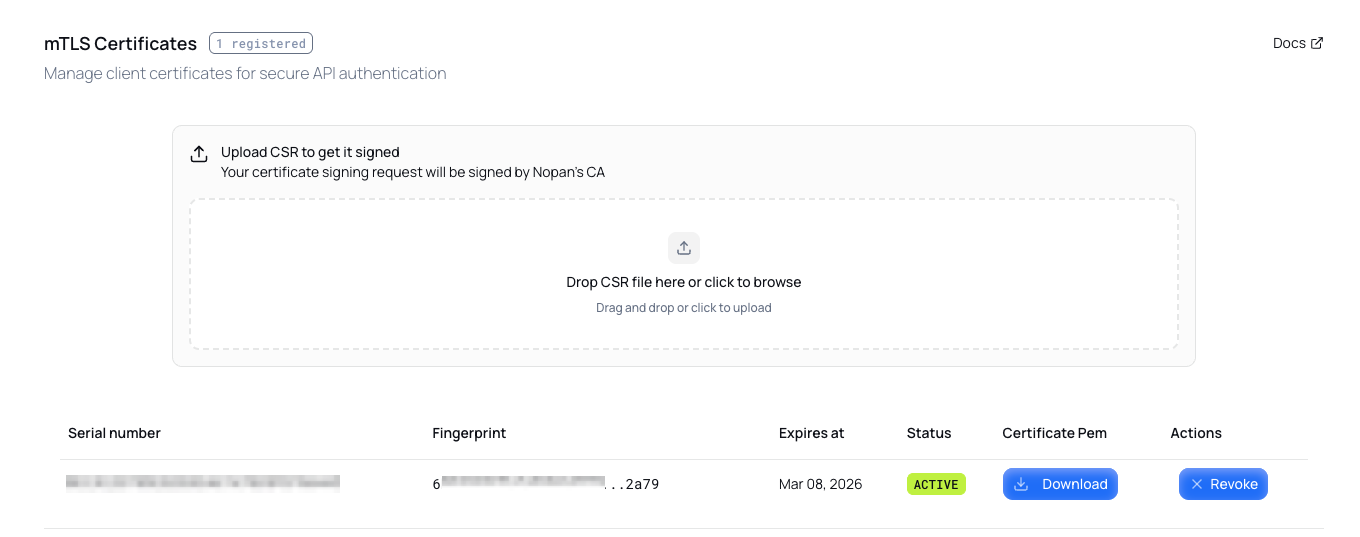
After upload, we’ll sign your certificate and return it in .pem format for immediate use.
You will be able to download your signed client certificate from the portal as <YOUR_CERT_SERIAL_NUMBER>.pem.
Don't store your private keys un-encrypted at rest,
convert the key certificate into a password‑protected PKCS#12 container after you receive <YOUR_CERT_SERIAL_NUMBER>.pem:
openssl pkcs12 -export -out client-cert.p12 \
  -inkey client-key.pem -in <YOUR_CERT_SERIAL_NUMBER>.pem \
  -name "Nopan Client Certificate"
Validating Your Certificate
After receiving your signed certificate from Nopan, it’s good practice to validate its contents.
Use the following command to inspect your certificate and verify important attributes like issuer, subject, validity period, and key usage:
openssl x509 -in <YOUR_CERT_SERIAL_NUMBER>.pem -text -noout
Validate:
- Subject: confirms your identity fields (e.g., CN)
- Issuer: should show Nopan's certificate authority
- Validity: ensure the certificate is within the expected time window
- Public Key: confirms correct algorithm and size
Private Key and Certificate Matching
Run the following two commands to extract and hash the public key from both the private key and the certificate:
Hash comparison
openssl ec -in client-key.pem -pubout -outform DER | openssl dgst -sha256

openssl x509 -in <YOUR_CERT_SERIAL_NUMBER>.pem -pubkey -noout \
| openssl ec -pubin -outform DER | openssl dgst -sha256
Both commands must produce identical SHA256 hashes.